






How to Set Up IPTV on Android TV Safely (Without Legal Issues)
How to Set Up IPTV on Android TV Safely (Without Legal Issues)
IPTV (Internet Protocol Television) can be a convenient way to watch live TV, sports and on‑demand video on your Android TV or Android TV Box. But because many IPTV services operate in a legal gray area — and enforcement is increasing worldwide — it’s important to set up and use IPTV safely and legally. This guide walks you through everything you need to know in 2025.
---
1) Quick answer: Is IPTV legal?
Short answer: IPTV technology is legal; using it becomes illegal when the service or stream re‑broadcasts copyrighted channels or shows without permission. Many legitimate IPTV services exist (they hold licensing agreements), but many cheap “all channels for one price” offerings are pirate services.
Important: Laws and enforcement vary by country. In several regions authorities and rights‑holders have stepped up actions against pirate IPTV providers and, in some cases, their customers. Be aware of local rules.
---
2) How to tell if an IPTV service is legal (red flags & verification)
Signs a provider is likely legal
Clearly lists brands or channels and states licensing/rights.
Provides transparent company data (business name, address, registration).
Uses normal payment methods (cards, PayPal) and issues proper invoices/receipts.
Offers trial periods, customer support, and refund/terms of service.
Has presence on mainstream review sites and positive independent reviews.
Red flags that usually mean “illegal”
Promises hundreds or thousands of premium channels (beIN, Sky, DAZN, etc.) for a tiny monthly fee.
Accepts only anonymous crypto payments or prepaid vouchers.
No verifiable company information or support, poor/no reviews, or aggressive reseller networks.
Uses “patched” or modified apps that remove DRM or unlock paid content.
Simple verification checklist
Search the provider name + “license” or “rights” and check reputable sources.
Look for official distributor partnerships (e.g., the channel or network listing the provider).
Test payment method and request an invoice — legal providers will supply one.
---
3) Before you set up: legal & privacy best practices
1. Choose a reputable, licensed IPTV provider (see above).
2. Keep proof of subscription (invoices, terms & conditions). A legal provider will give you documentation.
3. Avoid sideloaded pirate apps — they can carry malware and expose you to legal risk.
4. Understand local laws — different countries treat users and operators differently; when in doubt, consult local legal guidance.
5. Use strong account security: unique passwords, 2FA where available, and avoid sharing credentials publicly.
---
4) Step‑by‑step: How to set up IPTV safely on Android TV
(These steps use official store apps where possible — TiviMate, IPTV Smarters (legal when used with legal providers), VLC, and native Android TV apps. Replace app names if the provider recommends a specific official player.)
What you’ll need
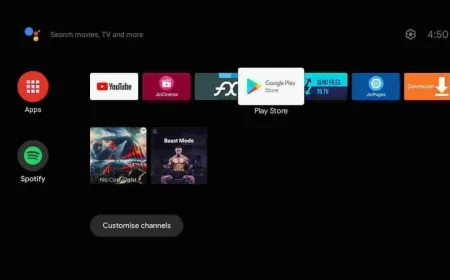
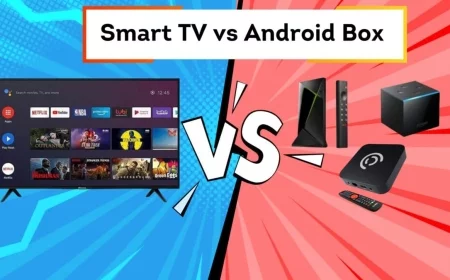
Android TV or Android TV Box connected to your TV.
A paid subscription to a verified/licensed IPTV provider (you should receive an M3U URL, portal URL, or login credentials).
Stable internet connection (Ethernet preferred for live TV/4K).
Step 1 — Choose an app from Google Play (official source)
Recommended apps (install from Google Play on Android TV):
TiviMate (popular EPG + playlist manager)
IPTV Smarters (player; note it’s neutral — legality depends on the provider)
VLC (simple player for M3U links)
Native player / provider app (some legal IPTV providers supply their own app)
Install only apps from Google Play (avoid unknown APKs).
Step 2 — Configure network for best performance
If possible, connect your Android TV via Ethernet (wired) for reliability.
If you must use Wi‑Fi, use the 5 GHz band and place the router near the TV.
Ensure your internet speed is adequate: ~5–10 Mbps per HD stream, 15–25+ Mbps for 4K.
Step 3 — Add your provider details securely
Open your chosen IPTV app → Add Playlist / Portal or Login as instructed by your provider.
Paste the M3U URL or enter username/password exactly as given.
If the provider supplies an EPG URL (electronic program guide), add it to get channel listings and schedule.
Step 4 — Test playback & quality
Try a mix of live channels and on‑demand content, at different times, to check reliability.
If buffering occurs, switch to Ethernet, reduce resolution, or contact the provider.
Step 5 — Keep software updated
Keep both the IPTV app and Android TV OS updated to receive security patches and better DRM handling.
---
5) Security & privacy: what to do (and what not to rely on)
Do
Use strong, unique passwords and change them periodically.
Use only reputable apps from the Play Store.
Keep logs/invoices from your IPTV subscription.
If you want privacy from your ISP, consider a reputable VPN that does not encourage or enable infringement. Note: a VPN does not make illegal streaming legal.
Don’t
Rely on VPNs to attempt to “hide” piracy — this is risky and may still breach terms of service or local law.
Install or run cracked or modified IPTV apps — they often contain malware and are frequently illegal.
---
6) Payment & refunds — how to avoid scams
Prefer providers that accept credit cards / PayPal (traceable payments) and issue invoices.
Avoid services that only accept crypto or gift cards — these are commonly used by illicit sellers.
Use short trial periods to test the service before committing long term. Legit providers usually offer customer service and refunds under reasonable terms.
---
7) What to do if you suspect the service is illegal
Stop using the service.
Cancel payments or subscriptions.
If billed fraudulently, contact your bank or payment provider for chargeback guidance.
Report the service to local authorities or rights‑holder organizations if you choose. News shows rights‑holders actively pursue pirate operators and sometimes consumers.
---
8) Short FAQ (SEO-friendly)
Q: Can I use a free IPTV M3U I found online?
A: It’s risky — many free public M3U lists contain pirated streams or unreliable links and may be illegal. Prefer licensed providers.
Q: Will using IPTV get me fined?
A: Risk depends on local law and whether the service is illegal. Enforcement is increasing in many markets; while providers are the main targets, users have faced civil claims or fines in some jurisdictions. Always choose licensed services.
Q: Is using a VPN enough to protect me legally?
A: No — a VPN may improve privacy but does not legalize copyright infringement and won’t protect you from civil or criminal consequences in many cases. Use legal services.
---
9) Quick actionable checklist (copy/paste for your post)
IPTV Safety Checklist
[ ] I verified the IPTV provider’s licensing and business info.
[ ] I paid via traceable methods (card/PayPal) and saved invoices.
[ ] I installed a player app from Google Play (no unknown APKs).
[ ] I use wired Ethernet or 5 GHz Wi‑Fi for stable streaming.
[ ] I keep device & app updates enabled.
[ ] I avoid sharing subscription credentials publicly.
[ ] I understand local copyright laws and accept responsibility.
---
10) Final thoughts (and a sensible recommendation)
IPTV can be a fantastic, flexible way to watch live TV on Android TV — as long as you use licensed, reputable providers and follow good security practices. Avoid “too good to be true” offers, keep documentation of your subscriptions, and prefer official Play Store apps and traceable payments. If you’re ever unsure about legality in your country, check local regulations or seek legal advice.
Key sources and further reading:
TroyPoint — “Is IPTV Legal?” (practical legal overview & setup).
Guides & setup tutorials for IPTV on Android (TroyPoint / Tanix guides).
Explanatory articles about IPTV legality and enforcement (news items about enforcement and piracy trends).
Lists of legal IPTV providers & how to verify licensing.
---
If you’d like, I can:
Turn the checklist into a printable PDF or infographic for your blog,
Create a short legal‑safe CTA you can place under the article that links to a legal IPTV partner or your own verified service, or
Produce a step‑by‑step video script showing the Android TV setup process (ready for recording).
Which one would you prefer?
What's Your Reaction?
 Like
0
Like
0
 Dislike
0
Dislike
0
 Love
0
Love
0
 Funny
0
Funny
0
 Angry
0
Angry
0
 Sad
0
Sad
0
 Wow
0
Wow
0