






How to Install Apps on an Android TV Box (Step-by-Step Guide)
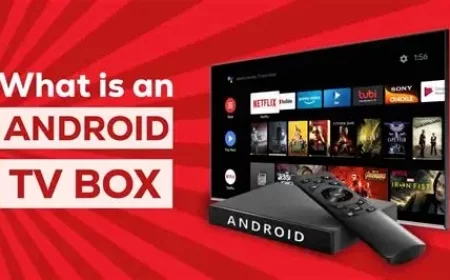
If you’ve just purchased an Android TV Box, congratulations — you now have access to thousands of apps that can transform your TV into a full entertainment hub. From Netflix and YouTube to IPTV, games, and utility apps, the possibilities are endless.
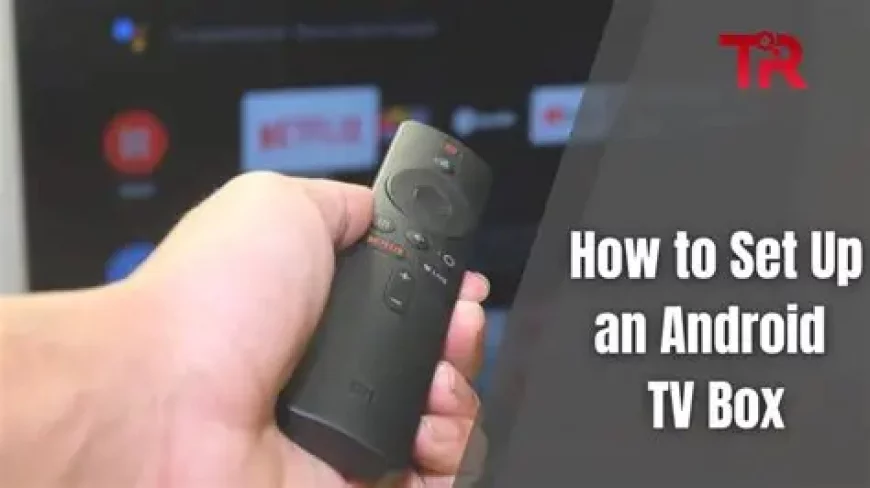
How to Install Apps on an Android TV Box (Step-by-Step Guide)
If you’ve just purchased an Android TV Box, congratulations — you now have access to thousands of apps that can transform your TV into a full entertainment hub.
From Netflix and YouTube to IPTV, games, and utility apps, the possibilities are endless.
But how do you install and manage these apps the right way?
This guide will walk you through every method to install apps on your Android TV Box, step by step — whether from the Google Play Store, a USB drive, or an APK file.
---
🎬 1. What You’ll Need
Before starting, make sure you have:
A working Android TV Box (connected to your TV via HDMI).
A Google Account to access the Play Store.
A stable internet connection (Wi-Fi or Ethernet).
A remote control or mouse/keyboard (optional for navigation).
---
🏪 2. Method 1: Install Apps via Google Play Store
This is the easiest and safest way to install apps on your Android TV Box.
✅ Step-by-Step:
1. Turn on your Android TV Box and connect it to the internet.
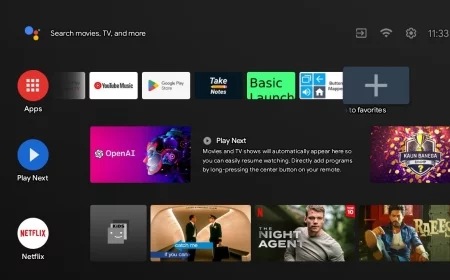
2. Open the Google Play Store app from your home screen.
3. Sign in with your Google Account (if not already logged in).
4. Use the search bar to find the app you want — e.g., Netflix, YouTube, Kodi, Spotify, or IPTV Smarters.
5. Click Install and wait for the download to complete.
6. Once done, the app will appear in your “Apps” section — ready to launch!
💡 Tip: Only download trusted apps from verified developers for the best performance and security.
---
💾 3. Method 2: Install Apps Using APK Files (Sideloading)
Some apps are not available on the Google Play Store — for example, certain IPTV players, region-restricted streaming apps, or custom utilities.
In this case, you can install APK files manually, a process known as sideloading.
⚙️ Step-by-Step:
1. On your Android TV Box, go to Settings → Security & Restrictions.
2. Enable “Unknown Sources” for the app you’ll use to install APKs (like File Manager or Downloader).
3. Download the APK file on your computer or phone from a trusted source.
4. Copy the APK file to a USB flash drive.
5. Plug the USB drive into your Android TV Box.
6. Open your File Manager app → Locate the APK → Click Install.
7. Once installation completes, the app will appear on your home screen.
⚠️ Warning: Be careful with APKs from unknown websites — some may contain malware. Use well-known sources or verified app repositories.
---
🌐 4. Method 3: Install Apps from a Web Browser or Downloader App
If your box doesn’t have the Play Store (common with cheaper or custom firmware boxes), you can still install apps via a Downloader app or web browser.
✅ How to Do It:
1. Install the Downloader app from the Play Store or pre-installed store.
2. Open Downloader and enter the URL of the APK you want to download.
3. Once the download is complete, click Install.
4. Launch the app from your main menu.
💡 Tip: Bookmark your favorite download sites to make it easier next time.
---
🔄 5. Managing Installed Apps
To keep your Android TV Box running smoothly:
Go to Settings → Apps → Manage Apps.
From here, you can:
Force stop apps not responding.
Clear cache/data to free up space.
Uninstall apps you no longer need.
Keeping your apps updated ensures better performance and security.
---
🧠 6. Troubleshooting Tips
If you face issues while installing apps:
Check your internet connection.
Make sure you have enough storage available.
Restart your TV Box after each new installation.
If the Play Store crashes, clear cache and data from app settings.
---
🎉 Final Thoughts
Installing apps on an Android TV Box is simple once you know how.
Whether you’re downloading from the Play Store or sideloading custom APKs, you have complete control over your entertainment experience.
With the right apps, your Android TV Box becomes much more than a streaming device — it’s a complete home entertainment system that fits your lifestyle.
How to install apps on Android TV Box, install APK on Android Box, Android TV Box setup, sideload apps Android TV Box, best apps for Android TV Box, IPTV Android Box installation guide, Android Box tips 2025
What's Your Reaction?
 Like
0
Like
0
 Dislike
0
Dislike
0
 Love
0
Love
0
 Funny
0
Funny
0
 Angry
0
Angry
0
 Sad
0
Sad
0
 Wow
0
Wow
0